Model Library
Each Use Case use a model. Model is a heart of Your Use Case. When You create new Use Case for AI, the algoriths create and train data model for Your logs. Models can work for single Use Case or be stored in library for multible use. Models can be moved between instances of Energylogserver.
Realtime manager
Models from the library can work in relatime. Hit clock icon and create new pipeline for Network Probe. Please note that model created on one dataset can be reused for other. Field names can differ from one used for training to one in real data stream. This Mapping section predefined model fields can be used for new ones, matching realtime stream.

Default AI Rules
Default Rules automatically deploy a set of rules for the syslog index at startup, enabling users to quickly start analyzing data.
Default rules:
Syslog Forecast network.bytes
Syslog Forecast network.ttl
Syslog Forecast postfix_delay
Syslog Forecast postfix_delay_transmission
Syslog Forecast postfix_size
Syslog Forecast count
Syslog Text Anomaly message
Windows-winlogbeat Text Anomaly message
Httpd Text Anomaly message
SIEM-alerts Text Anomaly full_log
SIEM-alerts Text Anomaly data.win.eventdata.data
SIEM-alerts Text Anomaly data.win.system.message
Syslog Univariate network.bytes
Syslog Univariate network.ttl
Syslog Univariate postfix_delay
Syslog Univariate postfix_delay_transmission
Syslog Univariate postfix_size
Syslog Univariate count
Httpd Clustering message
Syslog Clustering message
AI Store
The AI Store allows you to download an AI Use Case that matches your index patterns and upload it to your own infrastructure. A short description of each model is available in the drop-down list.
AI Use Case models can be accessed through the Energylogserver webpage and the Energylogserver app in the AI Cases => Online Store section.
To upload the selected model through webpage, follow the steps below:
Downloadthe model you are interested in.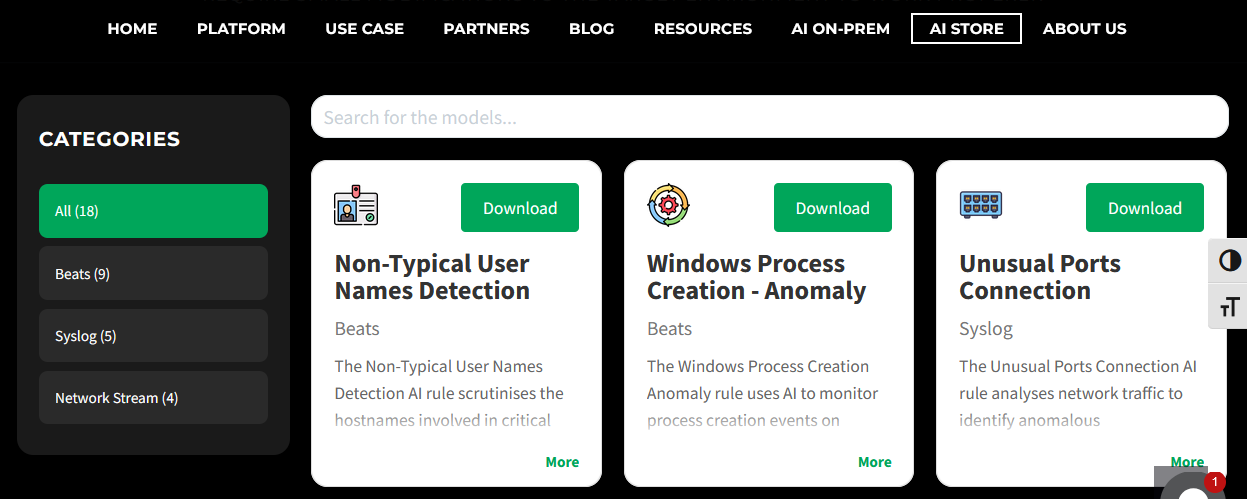
Open the Energylogserver app and navigate to the
Use Casestab.Click
Upload New Modeland select the downloaded model from the file explorer.
Press
Save & Runto start the model.
To upload the selected model via the Energylogserver app, follow the steps below:
Navigate to
Use Cases=>Storetab.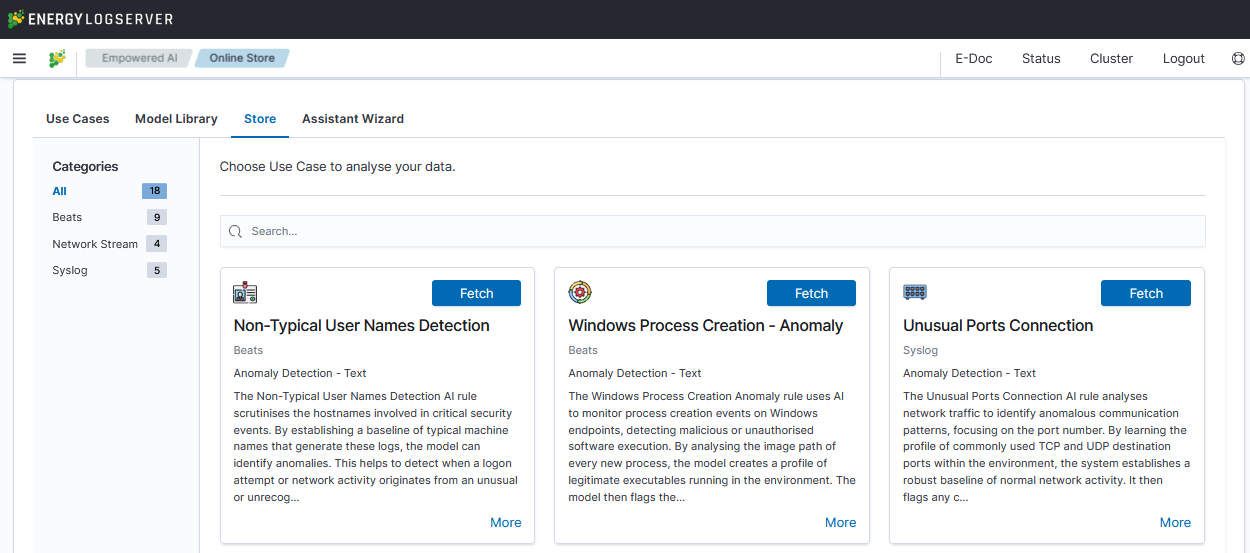
Select the model that you are intrested in and press
Fetchbutton.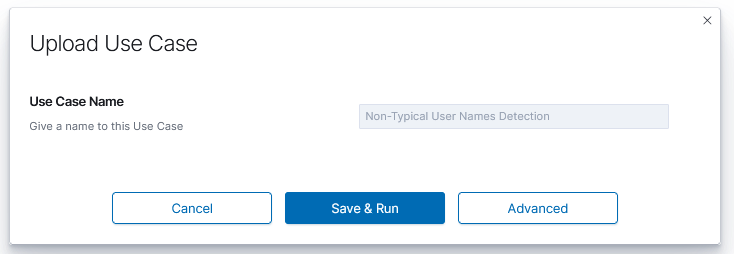
Press
Save & Runto start the model.